




Share a Business Bank Account
If you’ve already added a business bank account, you can share access with other Workspace Admins so they don’t have to repeat the full setup process.
Share a Business Bank Account
Who can share a business bank account
- Only Workspace Admins can share a business bank account.
- You can only share verified business bank accounts.
- You can only share with admins of workspaces where you are also an admin.
Where to find the share option for a business bank account
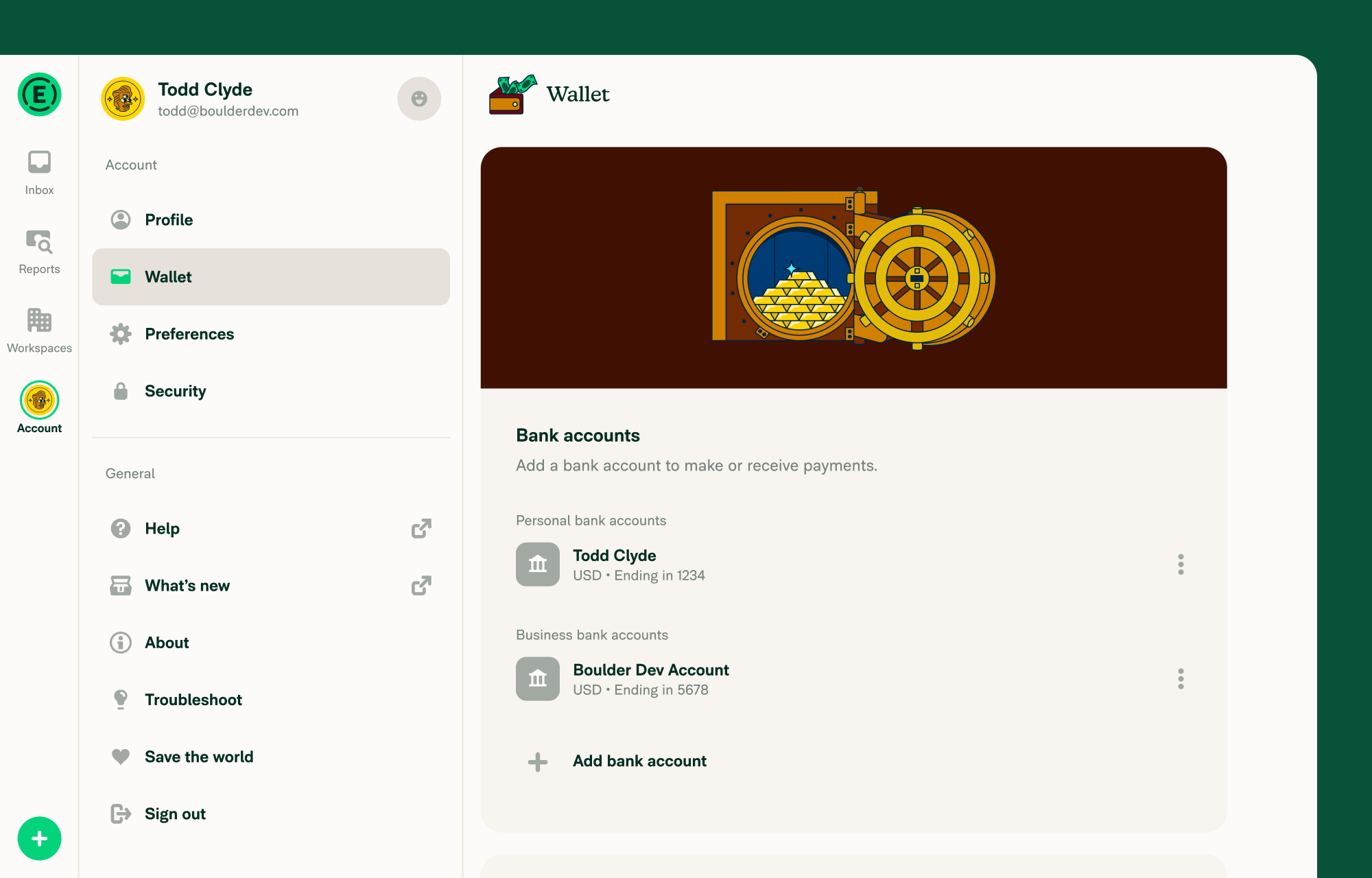
Go to Settings > Wallet.
On mobile, tap the hamburger menu in the top-left corner, then select Settings > Wallet.
How to share a business bank account
- Go to Settings > Wallet and find the verified business bank account.
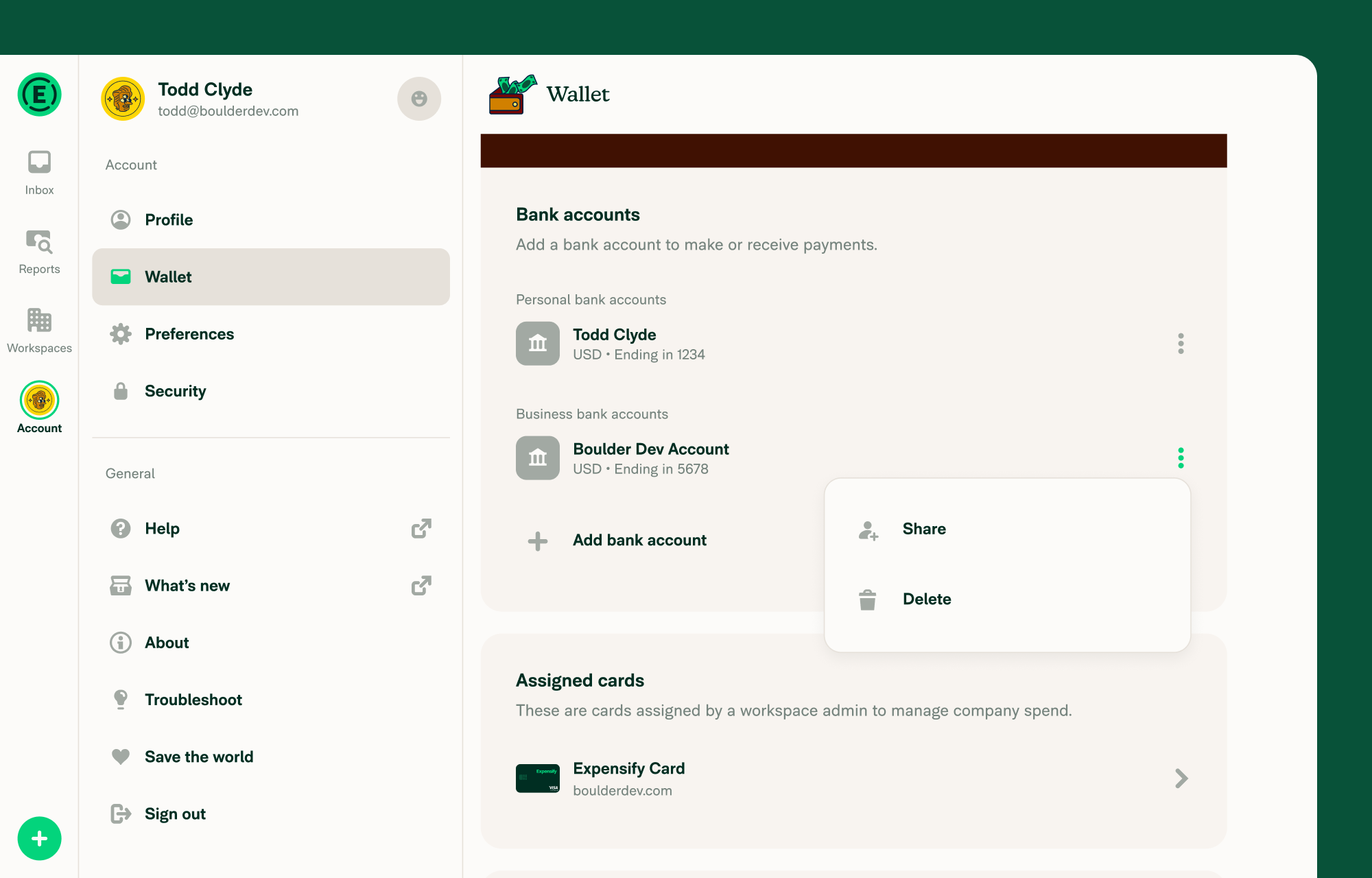
- Click the three dots (⋮) next to the account.
- Select Share.
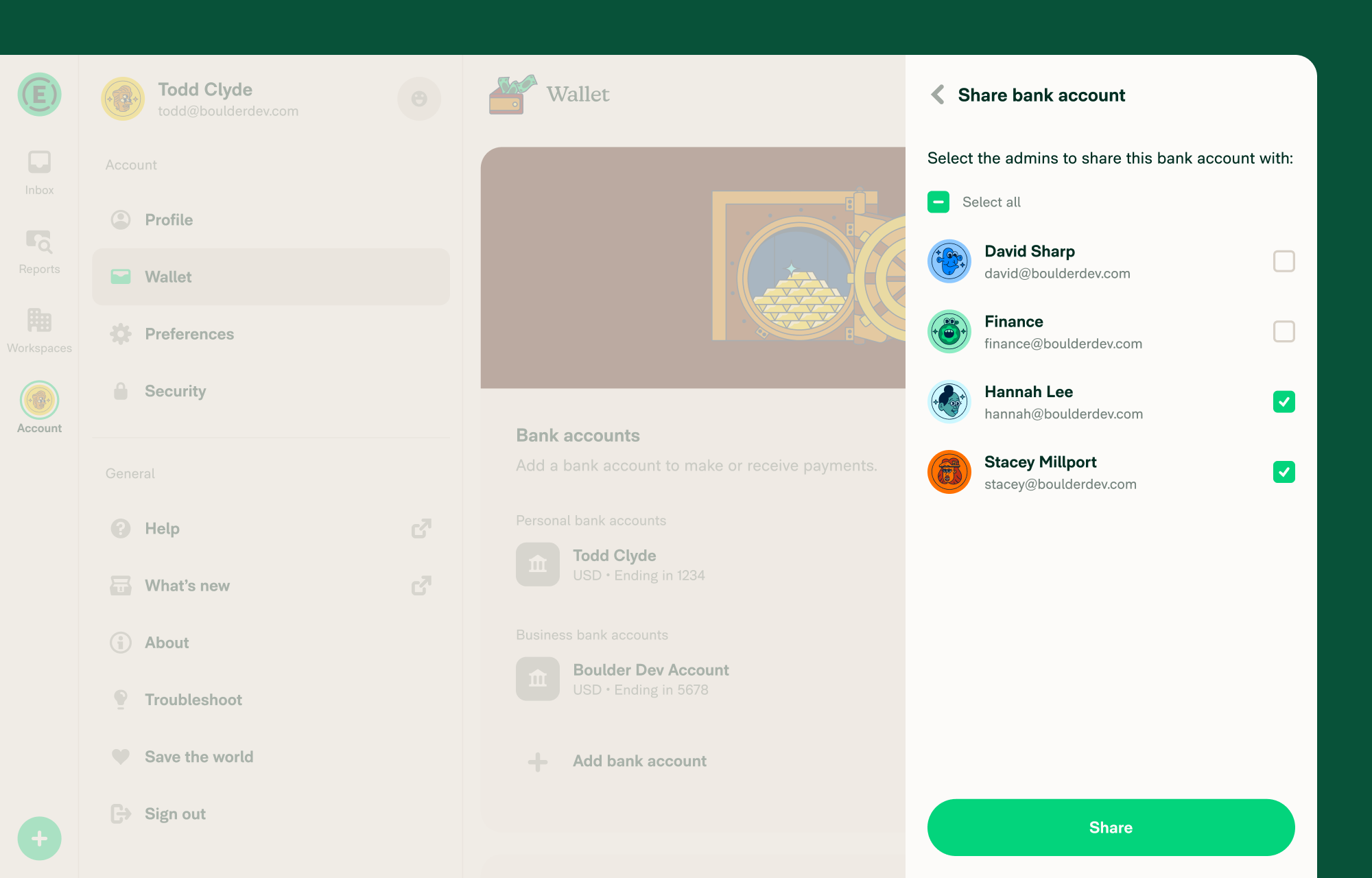
- Select the admins you want to share with. The list shows only Workspace Admins from workspaces where you also have admin access.
- Click Share.
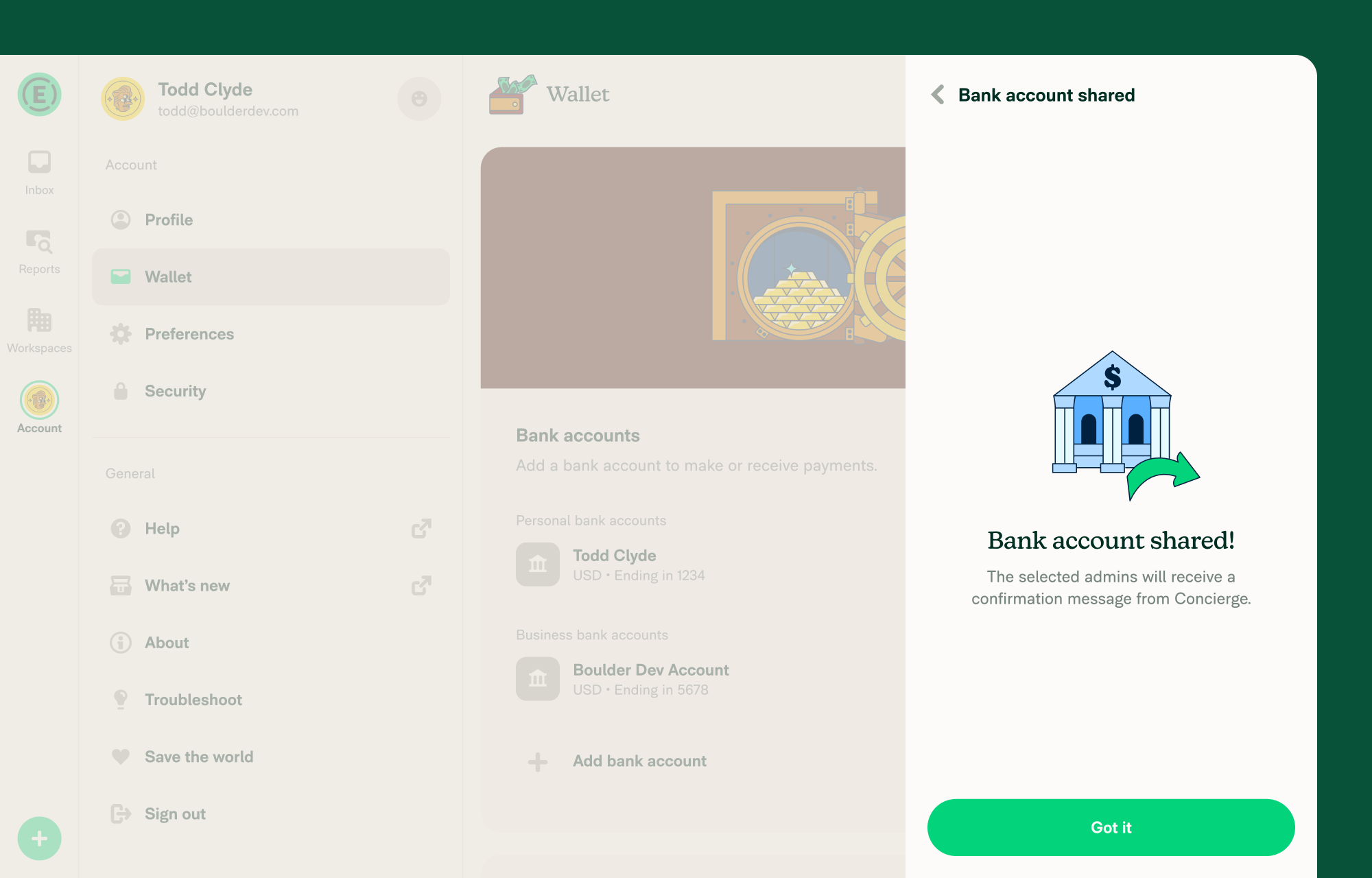
- You’ll see a confirmation once the process is complete.
The other admin must validate their copy (if required for US accounts) before using the account.
What happens after you share a business bank account
- The shared-to admins receive a Concierge message letting them know the account was shared.
- They’ll see the account in their Wallet.
For US accounts:
- The shared account appears with an Action required badge.
- The shared-to admin must validate the account by entering test transactions.
- After validation, they can begin using it. Learn how to validate a business bank account.
For non-US accounts:
- The shared account is ready to use immediately — no test transactions required.
How sharing a business bank account works when changing the payer
When changing the Authorized Payer in a workspace:
- If you have access but the new payer doesn’t: You’ll be prompted to share the bank account from the Authorized Payer screen. The account shares immediately when you confirm.
- If your copy of the bank account is pending validation: You’ll see an error prompting you to validate your account first by entering the test transactions before changing payers.
- If neither you nor the new payer has access: You’ll see an error asking you to request the current payer to share the account.
FAQ
Why share a business bank account?
Sharing saves time. You don’t have to redo the full verification process, and it makes it easier to change the workspace payer, set up new workspaces, and enable reimbursements without delay.
Can I share the same bank account with multiple admins?
Yes. You can select and share with multiple Workspace Admins at once.
Why don’t I see the Share option?
You’ll only see Share if the bank account is verified and there is at least one eligible Workspace Admin you haven’t shared with yet.
What if the other admin already has a copy of the account?
They won’t appear in the share list.
Can a shared admin share the bank account with others?
Yes. Once an admin has validated the account (if required), they can share it with other admins.
Can I share a bank account during the payer change process?
Yes. If the new payer doesn’t already have access, you’ll be prompted to share the bank account before confirming the payer change. This ensures the new payer can reimburse expenses without delay.
What happens if I try to set a payer but neither of us has bank account access?
You’ll see an error and be prompted to ask the current payer to share the account with one of you before proceeding.


